


Set up video reference storage
Use your own Cloudflare R2 or other S3-compatible storage when a video model needs local reference images.
Cloudflare screenshots show the actual English dashboard, with account details and keys excluded. Click any image to enlarge it. Orqra screenshots use example values to illustrate configuration and the test success message; they are not test results from a real cloud account.
On this page
Create an R2 bucket
This setup is needed when a video model uses local first-frame, last-frame, or reference images. Skip it for regular text or image generation.
In the English Cloudflare dashboard, open Storage & databases → R2 Object Storage. This opens the bucket list directly. On first use, activate R2 and review billing; storage charges are separate from Orqra and model fees.
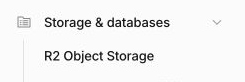
In the English Cloudflare sidebar, choose Storage & databases → R2 Object Storage to open the bucket list. Choose Create bucket. Enter orqra-video-inputs in Bucket name, leave Location set to Automatic, then choose Standard under Default Storage Class.
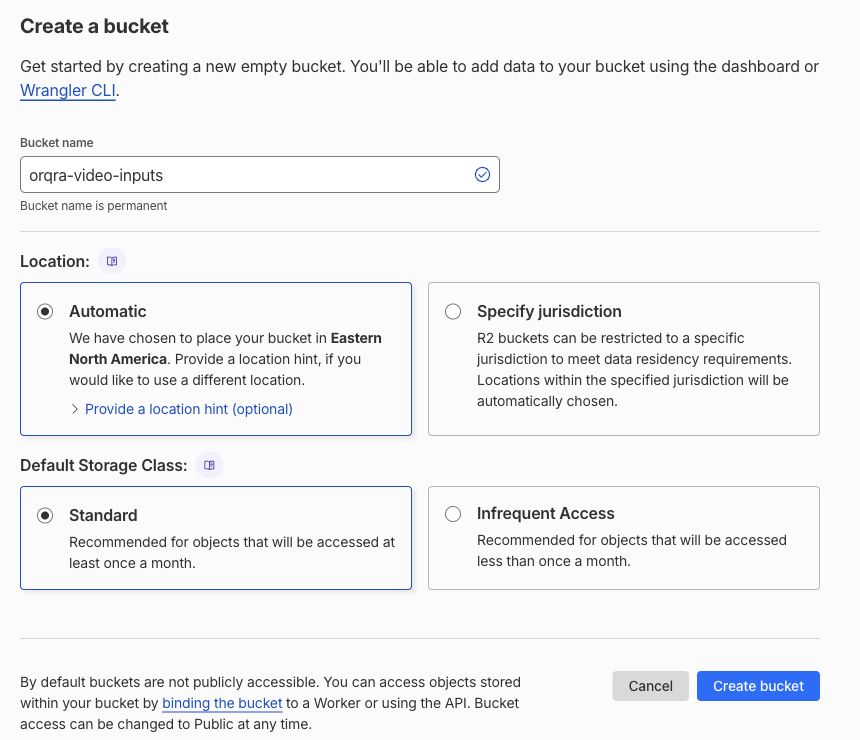
English Cloudflare bucket form: enter orqra-video-inputs in Bucket name and choose Standard under Default Storage Class. Keep the default private access. Choose Create bucket and confirm that orqra-video-inputs appears in the bucket list. Keep it private; there is no need to enable r2.dev public access or add a custom domain.
Enter the basic settings
On the R2 Object Storage overview page, find the S3 API row in Account Details and choose the copy icon on its right.
Example Endpoint: https://example-account-id.r2.cloudflarestorage.com. This uses an example account and contains no bucket name. Use the original address copied from your own account.
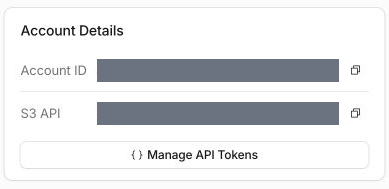
Find S3 API in the Account Details card and choose the copy icon on the right of that row. The account address is hidden in this screenshot. Paste the copied address unchanged into Endpoint and enter the bucket name separately in Bucket. In Orqra Desktop, open Settings → Data & Storage → HTTPS Media Storage. Paste the copied address unchanged into Endpoint and enter the name of the bucket you created separately in Bucket. Keep the other R2 defaults as shown below. Leave Access Key ID and Secret Access Key empty for now. Keep this settings page open so you can add the credentials and save everything together.
Basic settings reference Field in Orqra What to enter / where to find it Endpoint Copy the address from the S3 API row in Account Details and paste it unchanged into Endpoint. Do not use a dashboard URL or a public r2.dev address. Region auto Bucket Enter the name of the bucket you created separately, for example orqra-video-inputs. Do not append it to Endpoint. Temporary Object Prefix orqra-transient/ — must match the Prefix in the automatic deletion rule you will set up later. Session Token Leave empty for a fresh setup with the regular R2 credentials in this guide. Signed URL Lifetime (seconds) 21600 (6 hours): the download link lifetime, not the file deletion time. Use Path-Style URLs Leave enabled.
Create access credentials
On the R2 Object Storage page, find Account Details and choose Manage API Tokens.
In Account Details on the R2 Object Storage page, choose Manage API Tokens to open token management. In the User API Tokens section, choose Create User API token.

In User API Tokens, choose Create User API token. This is the entry to the form, not its final submission button. In the Create User API Token form, enter orqra-video-inputs in Token name. Under Permissions, select Object Read & Write.
Under Specify bucket(s), select Apply to specific buckets only and choose orqra-video-inputs, the same bucket you created above.
TTL defaults to Forever; use this control to choose a different credential lifetime if needed. Under Client IP Address Filtering, leave both Include and Exclude empty unless you need an IP restriction.
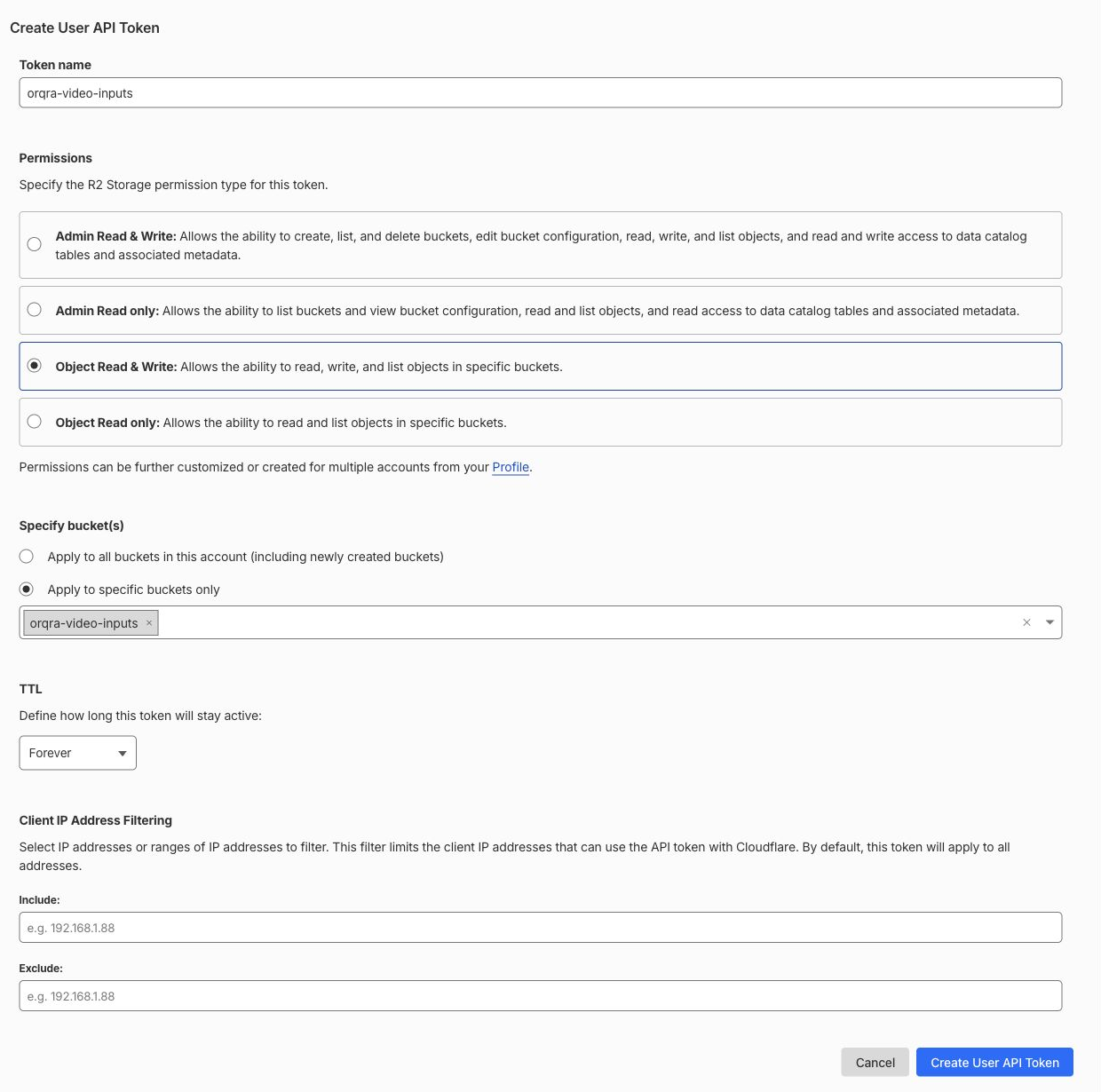
The English Create User API Token form: choose Object Read & Write, restrict Specify bucket(s) to orqra-video-inputs, and review TTL and Client IP Address Filtering before submitting. At the bottom of the form, choose Create User API Token. The Secret Access Key on the result page is shown only once. Keep this result page open and continue straight to the next section to enter the Access Key ID and Secret Access Key in Orqra and save them. Close the result page only after Orqra confirms the save. These are the two S3 credentials Orqra needs; do not use the API Token value or an OpenRouter API Key.
Add the credentials and save
Return to the Orqra settings page you left open. Keep the basic values already entered and add only the two credentials below.
Credential settings reference Field in Orqra What to enter / where to find it Access Key ID Copy Access Key ID from the Cloudflare result page you just opened and paste it here. Secret Access Key Copy Secret Access Key from that same Cloudflare result page and paste it here. It is shown only once; enter it only in Orqra Desktop. 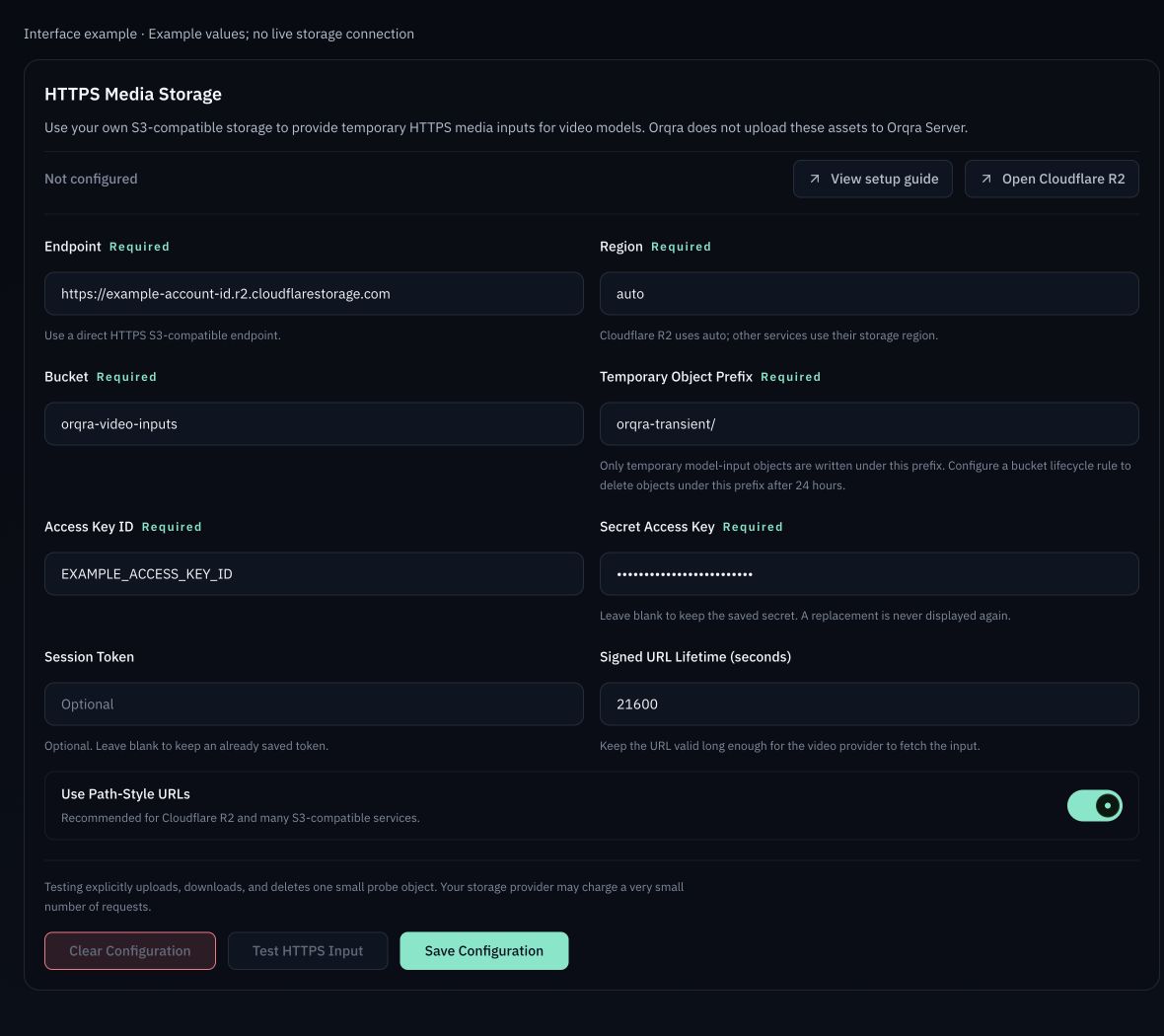
Orqra settings shown with example values. Choose Save Configuration and wait for “HTTPS media storage configuration saved.” before closing the Cloudflare result page. Pasting the credentials alone does not save the configuration. Saving does not upload files.
Set up automatic deletion
After Orqra confirms that the configuration is saved, return to Cloudflare and set up automatic deletion before testing. The rule name identifies the rule. Set the object prefix in the separate field below; leaving that field empty applies the rule to the whole bucket.
Open orqra-video-inputs → Settings → Object Lifecycle Rules, then choose Add.
Fill in the form using the table below, turn on Object lifecycle rule is enabled, and choose Save changes.
Lifecycle rule settings Field in Cloudflare What to enter or select Rule name delete-orqra-transient. This identifies the rule; it is not the object prefix. Apply to objects with the following prefix (optional): orqra-transient/. Do not leave this field empty; it must match the Temporary Object Prefix in Orqra. Delete uploaded objects after: Select this option, enter 1, and select Days. Object lifecycle rule is enabled Turn this switch on, then choose Save changes. 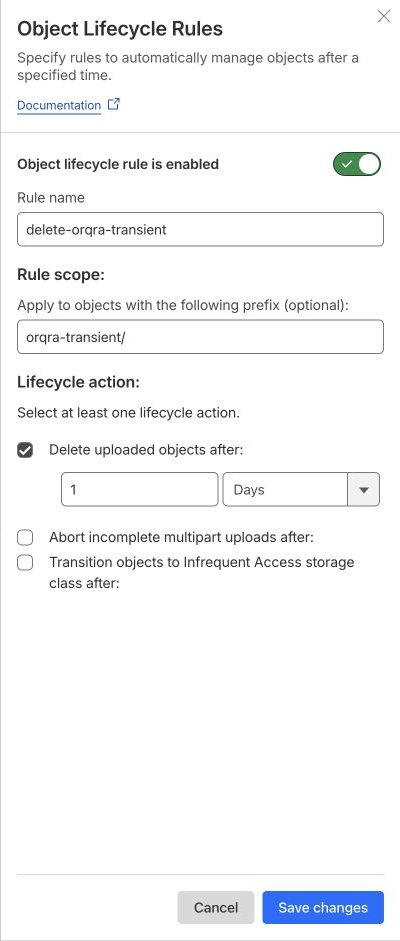
The unsaved English lifecycle form: Rule name is delete-orqra-transient; Apply to objects with the following prefix (optional): is orqra-transient/. Select deletion after 1 Days and turn on Object lifecycle rule is enabled. Check all four columns in the saved rule list: Rule Name is delete-orqra-transient, Prefix is orqra-transient/, Actions says Delete objects after 1 day(s), and Status is Enabled. Cloudflare deletes objects in the background, so deletion may occur later. The default rule for aborting incomplete multipart uploads after 7 days does not replace this rule.
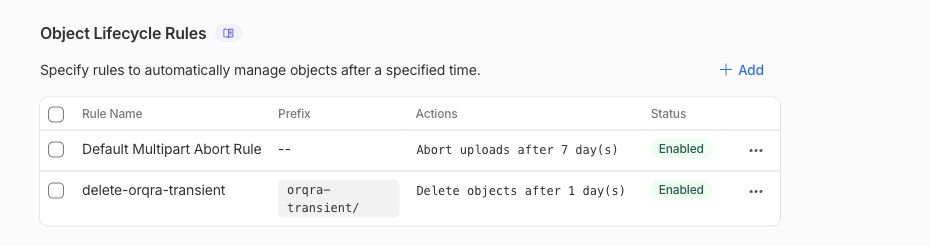
The saved English rule list: Rule Name is delete-orqra-transient, Prefix is orqra-transient/, Actions deletes objects after 1 day, and Status is Enabled.
Test and return to the video node
The screenshot illustrates the test success message with example settings. It is not a test result from a real cloud account.
Reference images reach OpenRouter and its upstream provider through your storage, not Orqra Server. The 6-hour link lifetime differs from the one-day cleanup rule. Clearing local settings does not delete cloud files; keep the cleanup rule enabled.
After saving the configuration and setting up the automatic deletion rule, return to Orqra and choose Test HTTPS Input. Orqra uploads, downloads, verifies, and deletes a tiny probe object. This may incur a small storage request charge; it does not call OpenRouter or create a video job.
Wait for “HTTPS upload and download test succeeded.” If an error appears, use the checks below and test again. A successful storage test does not guarantee every later fetch by the model provider.

Example of the Orqra test success message. This screenshot does not show a real cloud account test. Return to the canvas yourself, select the images in your video node, and choose Run when ready. Saving or testing storage does not start generation.
Fix storage test errors
- AccessDenied / 403: check that the credentials belong to the same Cloudflare account and grant Object Read & Write to the correct bucket. Do not make the bucket public to fix permissions.
- Bucket not found / 404: check the name entered in Bucket and confirm that Endpoint matches the S3 API address in Account Details for the same Cloudflare account. Do not use a dashboard URL or r2.dev.
- Signature error: check the matching Access Key ID and Secret Access Key, Region auto, enabled Path-Style, and automatic clock synchronization on your computer.
- Timeout: check your network, proxy, and endpoint reachability before testing again. A storage test does not run a model.
- Files remain: check the rule name, Prefix orqra-transient/, deletion after 1 day, and Enabled status. Clearing Orqra settings does not delete cloud files. Never send credentials or signed download links to support.