Prompt Fabric
Create, name, and find templates
Create reusable assets you can recognize and retrieve quickly. Give each template a clear name, focused description, and useful search keywords.
What you will complete
Create one well-named template, find it by name, keyword, Chinese pinyin, or initials, then insert it with !.
In this guide
- 1Choose the right type — Use Text for reusable context, Instruction for actions, or System Prompt for persistent model behavior.
- 2Name for recognition — Put the core object or intent first; use the description to explain when the template helps.
- 3Add search keywords — Include categories, specific terms, use cases, and common aliases so one search can reveal a useful collection.
Before you start
- Creating, editing, searching, and inserting templates stays local and does not call a model Provider.
- Prepare the reusable content and decide whether it is Text, an Instruction, or a System Prompt.
- System templates are read-only. Create a copy when you need an editable personal version.
Complete the task
- 1
Templates / New Template
Open the template editor
Open Templates and choose New Template, or save reusable content as a template from a supported field.
Expected result
The template editor opens with the reusable content ready to organize.
- 2
Type
Choose the type
Choose Text, Instruction, or System Prompt according to how the content will be used. Do not repeat the type or source in the name.
Expected result
The template appears only where that template type is compatible.
- 3
Name
Write a clear name
Put the core object or intent first. Prefer a short name such as Close-up Description or Dialogue Polish; avoid names such as Template, test, Copy, or Final.
Expected result
The name can be recognized quickly in search results without opening the template.
- 4
Description
Add a focused description
Explain what the inserted content provides and when it is useful. The description helps people decide; it should not repeat the name.
Expected result
Search results provide enough context to choose the right template.
- 5
Search Keywords
Add search keywords
Add at least two useful terms. Combine a category, specific object, use case, or common alias, such as shot size, close-up, composition, or emotion.
Expected result
Related terms can reveal the template even when the query does not match its exact name.
- 6
! / Template Search
Search and insert
Type ! in a compatible field. Search by name, keyword, Chinese characters, full pinyin, or initials. For example, 景别, jing bie, or jb can reveal the shot-size collection; choose one result and keep editing.
Expected result
The selected content is copied into the field and remains editable without changing the source template.
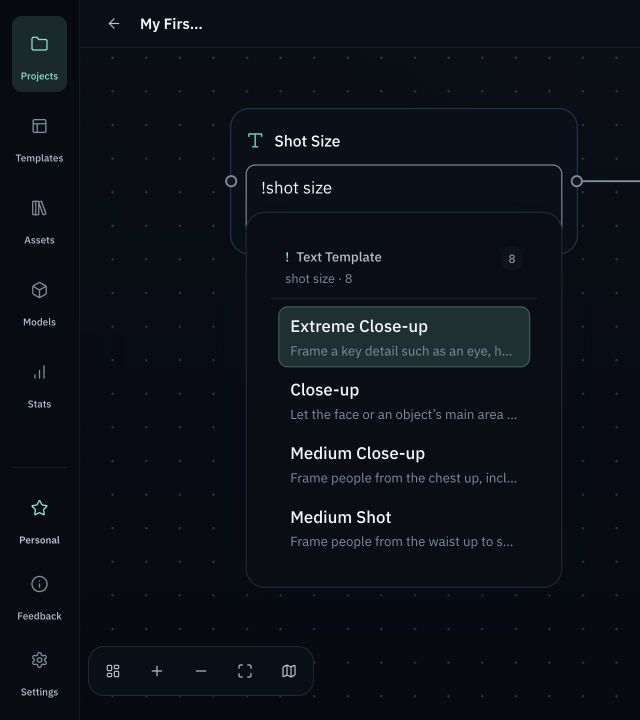
Checks before you retry
- The name is recognizable without filler words such as Template, System, Mine, Copy, or Final.
- Name, description, and search keywords have separate jobs; keywords are useful terms, not a sentence stuffed with repeats.
- A copied system template becomes an editable personal template. Inserted content is a copy and later template changes do not silently rewrite it.
